

The best image upscaler is the one that gives you a cleaner usable image, not just a larger file.
People usually search for the best image upscaler after something has already gone wrong.
A product photo looks soft on a marketplace listing. A blog image stretches badly on a retina screen. A generated image is beautiful, but too small for a hero section. A client sends a logo screenshot instead of the original file. An old family photo looks fine on a phone, then falls apart the second you put it on a larger display.
That is the real problem. You do not need a bigger file. You need an image that still looks believable after it gets bigger.
So what is the best image upscaler?
For most everyday web tasks, the best starting point is an online AI image upscaler such as UpscaleIMG. It lets you upload a JPG, PNG, or WebP image, improve resolution and sharpness with AI, compare the result, and download a clearer file without opening a complicated editor.
For professional retouching, print restoration, or strict brand work, the answer can be different. You may still need a desktop editor, manual cleanup, or a designer who can rebuild the asset properly.
This guide gives you the practical answer. Not a generic list. Not a sponsored-looking ranking where every tool is “best for something.” Just a simple way to choose the right image upscaler for the image in front of you.
Quick answer: what is the best image upscaler?
The best image upscaler depends on your final use.
If you need a fast, browser-based way to make photos, blog graphics, ecommerce images, social visuals, or AI art larger and cleaner, UpscaleIMG is the best practical starting point. The homepage is built around the workflow most people need: upload an image, run AI upscaling, preview the before-and-after result, then download the enhanced file.
If you need heavy restoration, exact typography, or pixel-level retouching, use an AI upscaler first and finish the job in a manual editor.
Here is the short version:
| Need | Best choice |
|---|---|
| Fast online image upscaling | UpscaleIMG homepage |
| HD, 2K, or 4K target output | UpscaleIMG HD Image Converter |
| Small product photos | AI upscaling plus manual review |
| Blog and website graphics | 2K target or a clean web-sized upscale |
| Social media images | Upscale to the platform size, then crop |
| Old or damaged photos | AI upscaling plus restoration or retouching |
| Exact logos or text | Rebuild in a design tool instead of trusting AI |
The mistake is assuming the biggest output is always the best output. It is not.
What an image upscaler actually does
Image upscaling means increasing the pixel dimensions of an image. A 600 pixel wide image might become 1200 pixels wide, 2000 pixels wide, or larger.
Basic resizing stretches the pixels that already exist. It can be fine for small changes, but it often makes an image look soft when you enlarge it too much.
AI image upscaling tries to do more. It analyzes edges, textures, patterns, faces, objects, and surrounding context, then generates plausible detail while increasing resolution.
That word “plausible” matters.
AI upscaling does not recover the exact missing pixels from the original scene. It creates details that are likely to fit. Most of the time, that is exactly what you want for web graphics, product previews, AI art, social posts, and blog images. Sometimes it is not enough, especially when the image must be legally or commercially exact.
Good upscaling should do four things:
- Increase usable resolution.
- Make edges and textures look cleaner.
- Reduce the ugly look of compression and pixelation.
- Preserve the truth of the image.
The fourth one is where bad upscalers fail. A sharper product photo that changes the label is not an improvement. A larger portrait with strange skin texture is not ready. A logo with warped letters should not go on a website.
How to choose the best image upscaler
You can judge an image upscaler with six questions.
1. What is the source image like?
Start with the file, not the tool.
A clear 1000 pixel product photo usually upscales well. A tiny 120 pixel thumbnail gives the model almost nothing to work with. A compressed screenshot from a messaging app may already have blocky artifacts that get amplified after enlargement.
Use the cleanest version you can find. If you have the original camera file, export, or supplier asset, use that instead of a screenshot.
2. Where will the image be used?
An ecommerce product image, a blog header, a social post, and a print mockup need different outputs.
A regular blog image rarely needs to become huge. It needs to look sharp on modern screens and load quickly. A product gallery may need enough resolution for zoom. A print layout needs more pixels and a stricter inspection step.
Upscaling should follow the final channel.
3. How much control do you need?
If you need a clean image quickly, an online AI image upscaler is the simplest path.
If you need to remove dust, repair scratches, adjust colors, mask a subject, or preserve brand typography exactly, you need more than one-click upscaling. Use AI upscaling to get a stronger base, then finish in an editor.
4. Does the result still look natural?
Open the upscaled image at the size where it will be published.
Do not judge only from the thumbnail preview. Look at faces, product edges, labels, fine lines, fabric texture, hair, shadows, and any visible text.
The image should look cleaner, not artificial.
5. Is the workflow fast enough?
For a single blog graphic, speed matters. You should be able to upload, upscale, compare, and download without learning a professional editing suite.
For a whole catalog, speed means something else. You may need batch processing, repeatable settings, team review, or API access. Check the current product before assuming your one-image workflow will scale to hundreds of files.
6. Are privacy and rights clear?
Do not upload images you are not allowed to process.
That sounds obvious, but it is easy to forget when the tool is convenient. If a file contains private documents, unreleased products, sensitive people, client assets, medical images, legal files, or confidential business material, check the site’s current privacy terms and your own rules before uploading.
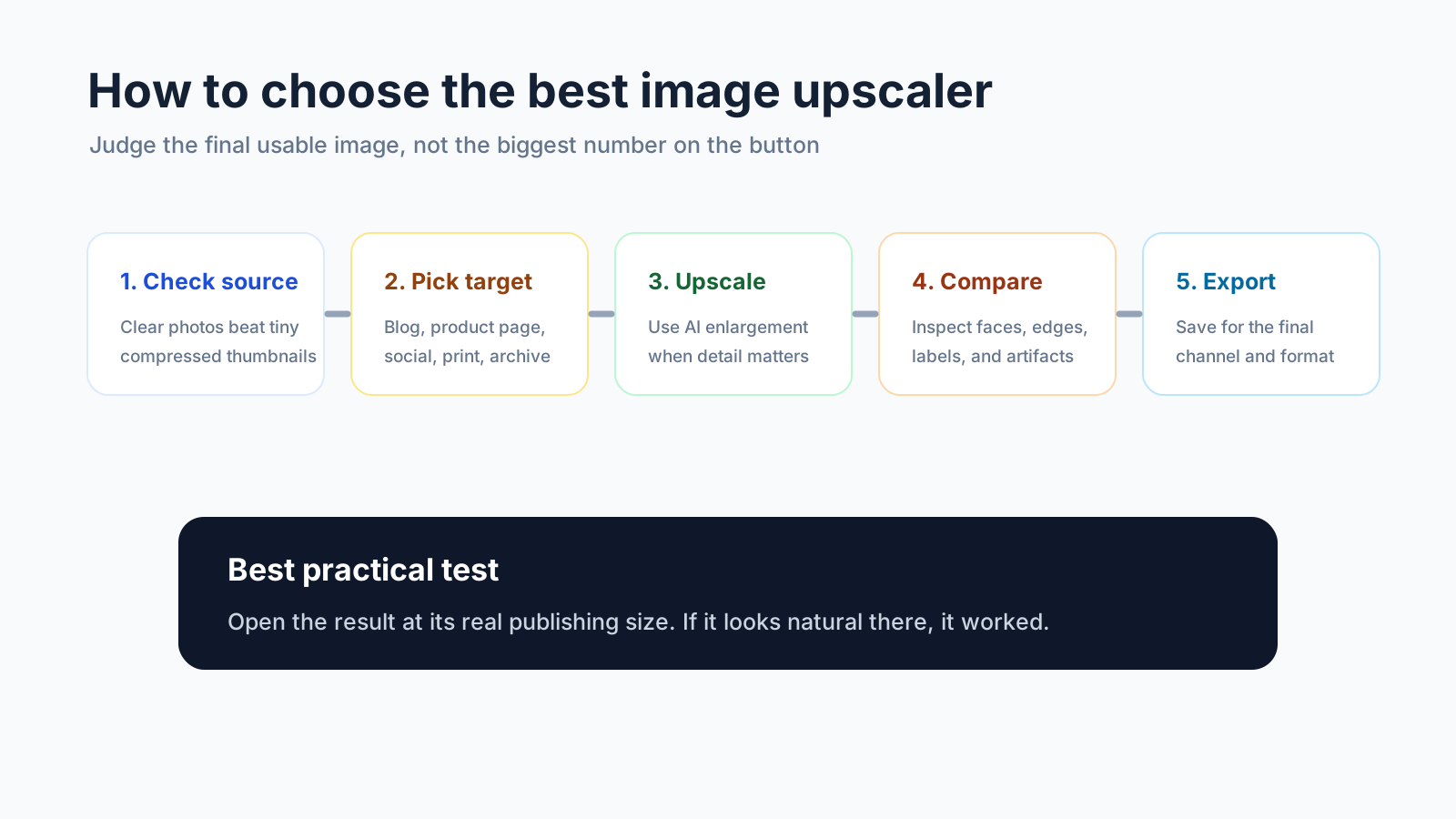
A good upscaling decision starts before upload: check the source, choose the target, then inspect the result at real size.
Why UpscaleIMG is the best starting point for most online image upscaling
UpscaleIMG is built for the most common image upscaling job: you have an image that is too small or too soft, and you want a cleaner version quickly.
The homepage flow is direct. Upload an image, run the AI upscaler, compare the original and upscaled result, then download. The current homepage describes support for JPG, PNG, and WebP images up to 10 MB, with AI processing used to improve resolution, sharpen soft photos, reduce noise, and return clearer results.
That is the right shape for most users.
You do not need to understand interpolation algorithms. You do not need to install a desktop app. You do not need to choose ten knobs before seeing whether the image is worth saving.
The site also has an HD Image Converter page for users who want a clearer target: HD, 2K, or 4K. That matters when you are preparing an asset for a website hero, presentation background, product gallery, or larger display.
The practical advantage is focus. UpscaleIMG does not ask you to become an image engineer before you fix a blurry visual.
Best image upscaler by use case
There is no single winner for every image. There is a best fit for each job.
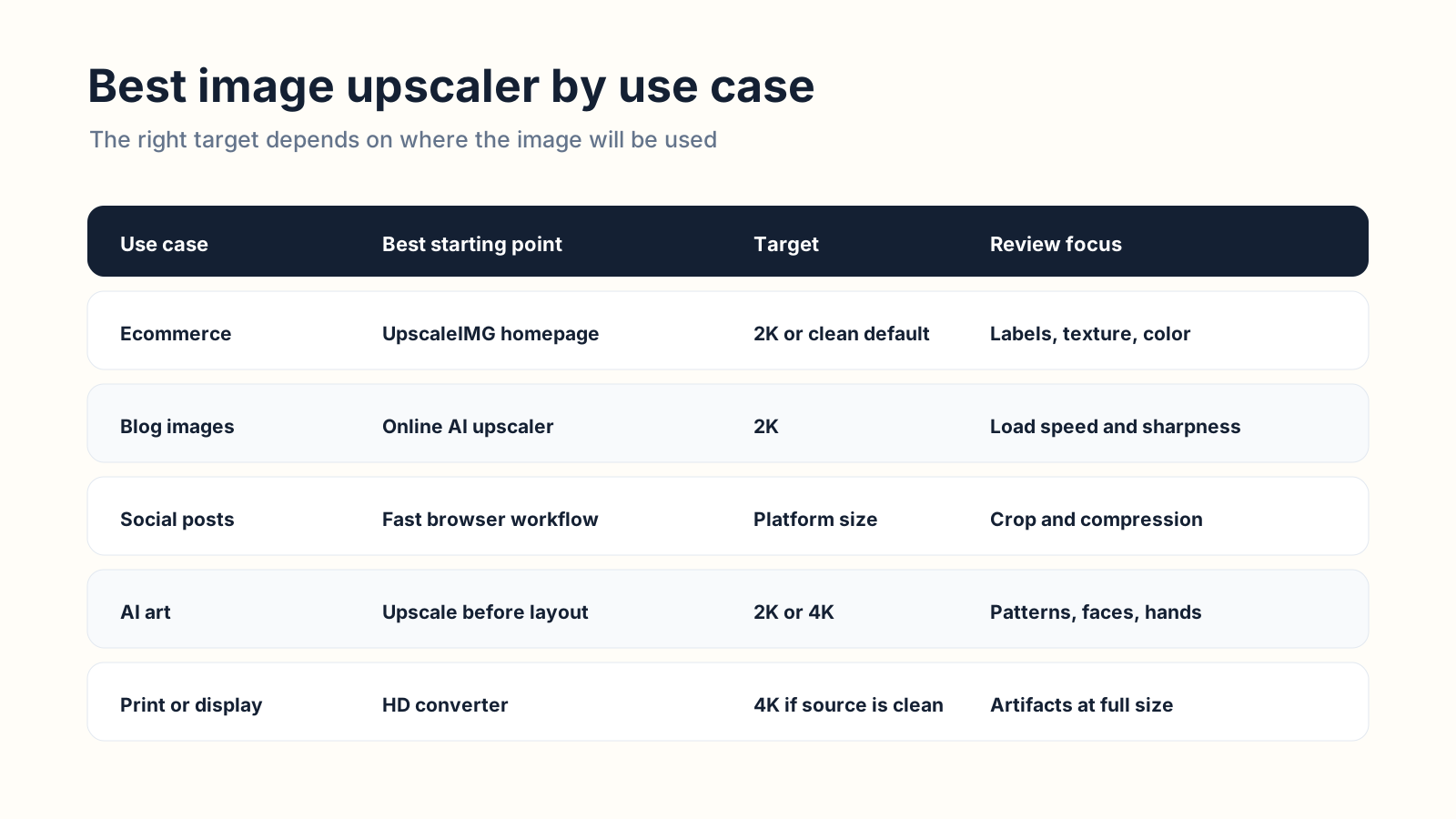
Different images need different settings. A product photo, blog image, and old family photo should not be judged by the same rule.
Ecommerce product photos
Use an AI image upscaler when your product image is too small for listings, ads, collection pages, or zoom views.
Start with UpscaleIMG if you need a fast online workflow. Try 2K for most product pages. Use 4K only when the source image is already clean and your final layout needs that much size.
Then inspect the parts that sell the product: label text, fabric texture, metal edges, color, stitching, packaging, and reflections.
Do not publish an upscaled product image if the AI changed a real product detail. A prettier image that misrepresents the product creates a bigger problem than a soft image.
Blog images and website graphics
For blog images, the best image upscaler is usually the one that balances sharpness and file size.
UpscaleIMG is a strong fit here because the workflow is fast and browser-based. You can clean up a header image, tutorial graphic, AI-generated illustration, or screenshot-style visual, then export it for the page.
For most blog layouts, 2K is enough. After upscaling, compress the final image for the web. A beautiful 4K image that slows the page down is still a bad asset.
Social media images
Social platforms compress images. They also crop aggressively.
Use an upscaler when an image looks soft after cropping or when a graphic was exported smaller than the platform’s recommended size. Upscale first, then crop to the final aspect ratio.
Check faces and text carefully. Social images move fast, but distorted text or odd facial details still make a post look cheap.
AI art and generated images
AI image generators often produce good-looking images at sizes that are not ideal for banners, posters, ecommerce mockups, or large blog hero sections.
Upscaling can make those images more useful. It can add cleaner edges, better texture, and enough resolution for a larger layout.
The review step matters here because AI art often contains hidden problems: strange hands, repeated patterns, warped objects, messy background details, or fake text. Upscaling makes those details easier to see.
Old photos
AI upscaling can make old photos easier to view, but it is not the same as full restoration.
If the photo is small but clear, upscaling may help a lot. If it is scratched, stained, torn, or badly blurred, you may need restoration tools or manual retouching after the upscale.
For personal images, privacy matters more than speed. Only upload files you are comfortable processing through an online service.
Print and large displays
For print or large displays, use a target-based workflow.
The UpscaleIMG HD Image Converter is the better path when you want HD, 2K, or 4K output. But do not choose 4K blindly. A weak source image can become a larger weak image.
Print also exposes artifacts that look harmless on a phone. Inspect at full size before sending the file to a printer or client.
AI upscaler vs basic resizing
Basic resizing is predictable. AI upscaling is smarter, but it can invent.
That is the tradeoff.
| Method | Best for | Strength | Weakness |
|---|---|---|---|
| Basic resize | Minor layout changes | Fast and predictable | Gets blurry when pushed too far |
| AI upscaler | Photos, products, AI art, web graphics | Rebuilds plausible detail | Can introduce artifacts |
| Manual editing | Commercial final assets | Maximum control | Slower and requires skill |
| Vector rebuild | Logos and simple graphics | Clean at any size | Requires recreation, not enhancement |
If you are enlarging a photo, AI upscaling is usually better than basic resizing.
If you are enlarging a logo, icon, chart, or text-heavy screenshot, be careful. The best answer may be to rebuild the asset as SVG, export from the original design file, or recreate the text in HTML or a design tool.
What settings should you choose?
Use the smallest output that solves the problem.
That sounds conservative, but it is how professionals think about image quality.
Larger files cost more to store, load slower, and expose more artifacts. The goal is not to win a pixel-count contest. The goal is to make the image sharp enough for its job.
Use this rule:
- Use a simple homepage upscale when you need a cleaner image quickly.
- Use HD when the original is small and the final use is a normal screen.
- Use 2K for blog headers, product pages, social graphics, and most website visuals.
- Use 4K for large hero images, presentations, displays, print mockups, and cases where the source is already strong.
If the output looks waxy, crunchy, or fake, step down the target or find a better source.
How to use UpscaleIMG
The basic UpscaleIMG workflow is short.
- Open UpscaleIMG.
- Upload a JPG, PNG, or WebP image.
- Run the AI upscaler.
- Compare the original and upscaled preview.
- Download the enhanced image.
For HD, 2K, or 4K targets, open the HD Image Converter, upload your image, choose the target resolution, process it, then review the result before download.
Use the homepage flow when you want speed. Use the HD converter when the final size matters.
What the best image upscaler cannot fix
No image upscaler can do everything.
It cannot perfectly recover detail that was never visible. It cannot guarantee that tiny text becomes accurate. It cannot turn every low-quality thumbnail into a trustworthy product image. It cannot know your brand rules unless you check the output. It cannot replace the original design file for a logo or UI mockup.
This is where a lot of disappointment comes from. People expect restoration. The tool is doing enhancement.
That difference matters.
Enhancement can make a usable image better. Restoration repairs damage. Design rebuilds exact assets. Retouching makes selective manual changes. Sometimes you need one. Sometimes you need all of them.
Quality checklist before you publish
Before you use an upscaled image, run this quick check:
- Does the subject still look like the original?
- Are product labels, logos, and text readable?
- Do faces, hands, hair, and skin look natural?
- Are edges sharper without looking overprocessed?
- Did the AI add or remove any important detail?
- Is the file size reasonable for the final page?
- Do you have the right to use and process the image?
This checklist takes less than a minute. It prevents most bad outcomes.
The honest answer
The best image upscaler is not the one with the loudest promise.
It is the one that fits your file, your destination, and your tolerance for review.
For most people working with web images, ecommerce photos, blog graphics, social posts, and AI art, UpscaleIMG is the best place to start because it gives you the core workflow directly on the homepage: upload, upscale, compare, download.
For higher-resolution needs, use the HD Image Converter. For final commercial work, inspect the result and finish in a proper editor when needed.
That is the whole game.
Use AI to make the image better. Use judgment to decide whether it is ready.
FAQ
What is the best image upscaler online?
For most everyday online tasks, UpscaleIMG is the best practical starting point. It supports a simple upload, AI upscaling, before-and-after comparison, and download workflow in the browser.
Is AI image upscaling better than normal resizing?
Usually, yes, when the image needs real quality improvement. Normal resizing stretches existing pixels. AI upscaling generates plausible extra detail, which can make photos and graphics look cleaner at larger sizes.
Can I upscale an image to 4K?
Yes, if the tool supports it. UpscaleIMG’s HD Image Converter is built around HD, 2K, and 4K outputs. Use 4K when the source image is already clear and the final use needs a large file.
What image formats does UpscaleIMG support?
The current UpscaleIMG homepage describes support for JPG, PNG, and WebP images up to 10 MB.
Will an image upscaler fix blurry text?
Sometimes it can make text edges cleaner, but it can also distort letters when the source is too blurry. For important text, recreate the text in a design tool after upscaling the background.
Is UpscaleIMG free?
The current homepage presents UpscaleIMG as an online free AI image upscaler. Pricing, limits, and access rules can change, so check the live site before relying on a specific limit for business use.
What images work best with AI upscaling?
Clear source images work best. Product photos, portraits, blog graphics, social images, and AI art usually respond better than tiny thumbnails, heavily blurred images, or files with severe compression damage.
Should I use AI upscaling for ecommerce images?
Yes, if you review the result carefully. Product photos must stay accurate. Check labels, colors, materials, edges, packaging, and any details a buyer depends on.
Sources checked
This article was prepared for the UpscaleIMG blog and checked against live public pages on August 25, 2026:
- UpscaleIMG homepage: https://upscaleimg.net/
- UpscaleIMG HD Image Converter: https://upscaleimg.net/hd-image-converter

