

The best free image upscaler depends on what you mean by software: installed desktop app, online tool, or design-suite feature.
The honest answer is this:
If you mean a completely free desktop app you can install, the best software for upscaling an image for free is usually Upscayl. It is open source, runs locally, and is the cleanest answer for people who specifically want installed freeware.
If you mean the best free way to upscale an image without installing anything, the better starting point is UpscaleIMG. It is built for the job most people actually have: upload an image, enlarge it with AI, compare the result, and download a sharper version in the browser.
That distinction matters.
People search for “software” when the real problem is not software. The real problem is a small, blurry, compressed, or under-sized image that needs to look better on a product page, blog post, social graphic, presentation, or AI art workflow. Installing a desktop app may be the right answer. Often, it is unnecessary.
This guide gives you the practical answer. It compares the best free image upscaler options, explains where UpscaleIMG fits, shows when desktop software is better, and gives you a simple workflow for upscaling images without making them look fake.
Quick answer
For most users, the best free image upscaling choice is:
| Situation | Best free option |
|---|---|
| Fast online image upscaling | UpscaleIMG |
| Truly free desktop software | Upscayl |
| Already editing inside Adobe tools | Adobe Express image upscaler |
| Already designing in Canva | Canva image upscaler |
| Simple online test with free credits | Upscale.media, Pixelcut, Icons8, or similar freemium tools |
| Anime or illustration upscaling | Upscayl or waifu2x-style tools |
| Exact logos or text-heavy graphics | Rebuild the asset instead of trusting AI upscaling |
My practical recommendation:
Start with UpscaleIMG if you want the fastest free online workflow for web images, ecommerce photos, social posts, blog graphics, and AI-generated art.
Use Upscayl if you want a local desktop app, no cloud upload, and more control over models and files.
Use Adobe Express or Canva if your image is already inside those design ecosystems and you only need a quick upscale as part of a larger edit.
What “free image upscaler software” really means
The phrase can mean three different things:
- A desktop program you install.
- A free online AI image upscaler.
- A free feature inside a design platform.
Those are different workflows.
A desktop app gives you more local control. An online upscaler is faster and easier. A design-suite upscaler is convenient when you are already building a social graphic, flyer, presentation, thumbnail, or website visual.
The best choice depends on the job, not the category.
If you have one small JPG that needs to look sharper in a blog post, downloading desktop software is probably overkill. If you are processing private client images, unreleased product shots, or hundreds of files, a local app may be worth the setup. If you are making an Instagram post in Canva, staying inside Canva may be simpler.
That is why a serious answer cannot be one tool for every person.
Best free image upscaler software by use case
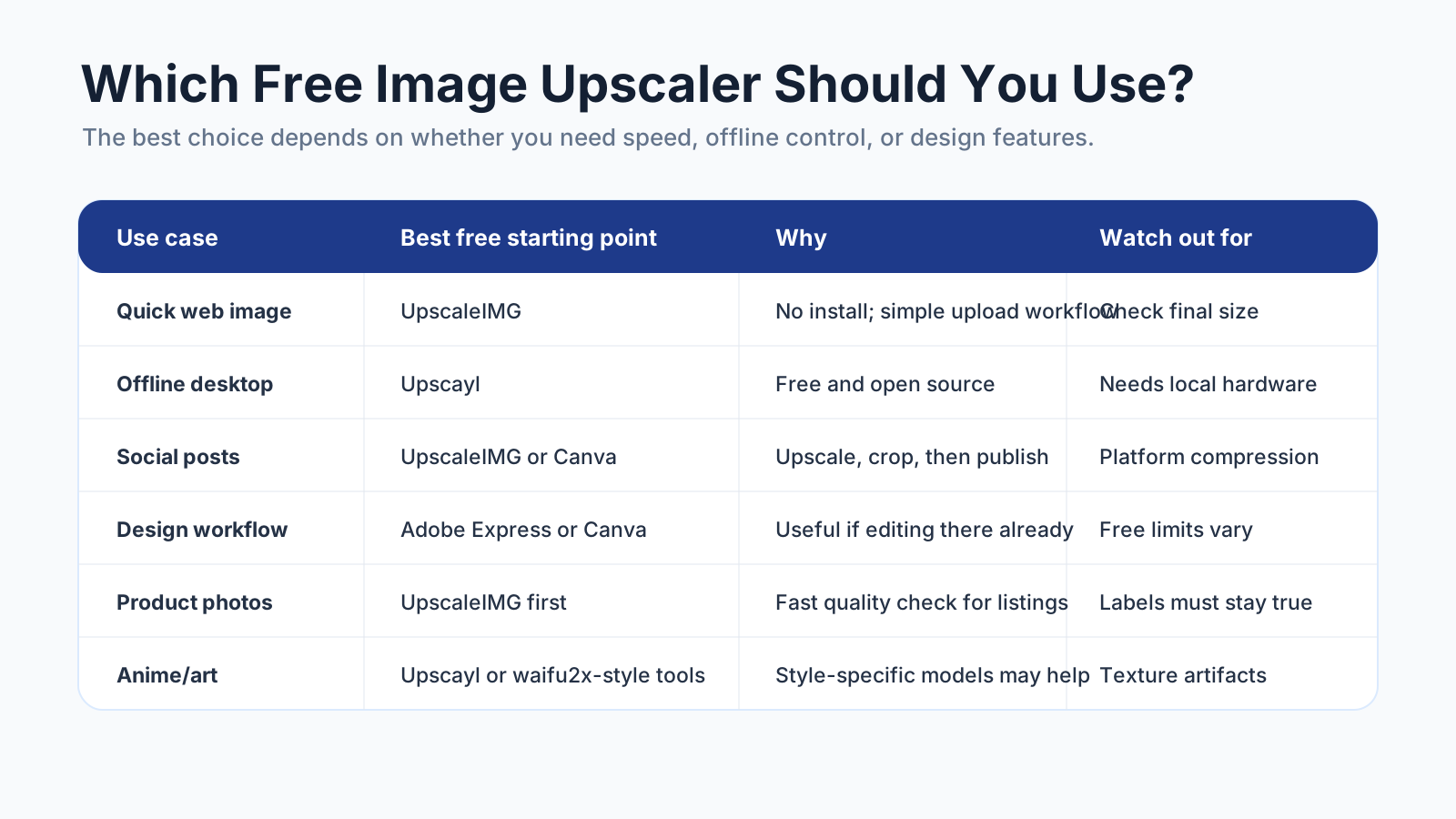
A free image upscaler is only best if it fits the image, the workflow, and the final use.
Best for fast online upscaling: UpscaleIMG
UpscaleIMG is the best starting point if you want to upscale an image for free without installing software.
That is the core business of the site: make image enhancement simple for people who need better visuals quickly. The workflow is intentionally direct:
- Upload an image.
- Choose the upscale level.
- Preview the enhanced result.
- Download the sharper image.
UpscaleIMG is especially useful for:
- Blog images
- Website graphics
- Ecommerce product photos
- Social media visuals
- AI-generated images
- Thumbnails
- Presentation images
- Old low-resolution photos that need a quick quality boost
The value is speed. You do not need Photoshop, a GPU setup, command-line tools, or a model folder. You need a browser and an image.
The current UpscaleIMG homepage is built around 2x and 4x AI upscaling, with output options such as JPG, PNG, and WebP. It also supports modern input formats, including HEIC and AVIF, which matters if you are working with iPhone photos or newer web images. The site also emphasizes privacy-first processing, which is important for users who want quick enhancement without a heavy editing workflow.
UpscaleIMG is not the right answer for every job. If you need unlimited local batch processing, an offline workflow, or strict control over every model parameter, use a desktop tool. If you need exact logo reconstruction, rebuild the asset in a vector editor.
But for the most common free upscaling task, UpscaleIMG is the cleanest online path.
Best true free desktop software: Upscayl
Upscayl is the strongest answer if the word “software” means installed desktop software.
It is a free and open-source AI image upscaler. It runs on your computer, which makes it appealing for users who do not want to upload images to a web service. It is also a better fit if you want to experiment with local models or process images in a more technical workflow.
Use Upscayl when:
- You want a desktop app.
- You prefer open-source software.
- You do not want to upload files.
- You have enough local hardware to run AI upscaling comfortably.
- You want to process many images outside a browser.
The tradeoff is setup. A local app can be powerful, but it is still one more tool to install, maintain, and troubleshoot. For a single web image, that may not be worth it.
Best for quick design edits: Adobe Express
Adobe Express offers a browser-based image upscaler as part of Adobe’s consumer design workflow. It makes sense if you already use Adobe tools, want a polished design environment, or plan to combine upscaling with templates, text, backgrounds, social graphics, or brand assets.
Use Adobe Express when:
- You already have an Adobe account.
- You want to upscale and edit in one place.
- The image is part of a larger design.
- You need a fast creative workflow, not just a raw enhanced file.
The catch is that free features, export options, login requirements, and plan limits can change. Check the current Adobe Express page before building a repeatable workflow around a specific free limit.
Best for social designs: Canva
Canva’s image upscaling features are useful when the final output is already a Canva design: a social post, thumbnail, flyer, presentation slide, ad mockup, or content graphic.
Use Canva when:
- You are designing inside Canva already.
- You need to upscale, crop, and place the image in a template.
- The output is for social, marketing, or lightweight design work.
Canva is not always the fastest path if all you need is “make this image sharper and download it.” In that case, a focused tool such as UpscaleIMG is usually simpler.
Best freemium alternatives: Upscale.media, Pixelcut, Icons8, and Let’s Enhance
Several online tools offer free trials, limited free credits, or free low-volume enhancement. Popular examples include Upscale.media, Pixelcut, Icons8 Smart Upscaler, and Let’s Enhance.
These tools can be good options if you want to compare results across models. They may handle certain images better than others, especially portraits, product photos, illustrations, or heavily compressed files.
The important word is “freemium.” Free limits, watermarks, account requirements, commercial-use terms, and export quality can change. Do not assume a tool is unlimited just because a landing page says “free.”
For occasional image fixes, trying two or three tools can be useful. For a repeatable workflow, choose the one that gives you the best balance of quality, privacy, speed, and predictable limits.
Why UpscaleIMG is the best free online starting point
UpscaleIMG is built around a narrow promise: take an image that is too small or soft and make it sharper with AI.
That focus matters.
Many creative platforms include image upscaling as one feature among many. That is useful if you need the full design environment. It is less useful if you just want a clean before-and-after image enhancement workflow.
UpscaleIMG is a better fit when you care about:
- No-install access
- A fast browser workflow
- AI upscaling for everyday images
- Simple quality comparison
- Web-ready enhancement
- Product, blog, and social image preparation
For our site, the business case is straightforward: most users do not need professional retouching software. They need a fast way to turn a low-resolution image into something usable.
That does not mean every image should be upscaled blindly. It means the tool should make the first pass easy, so you can spend your attention on the quality check.
How to upscale an image for free without ruining it
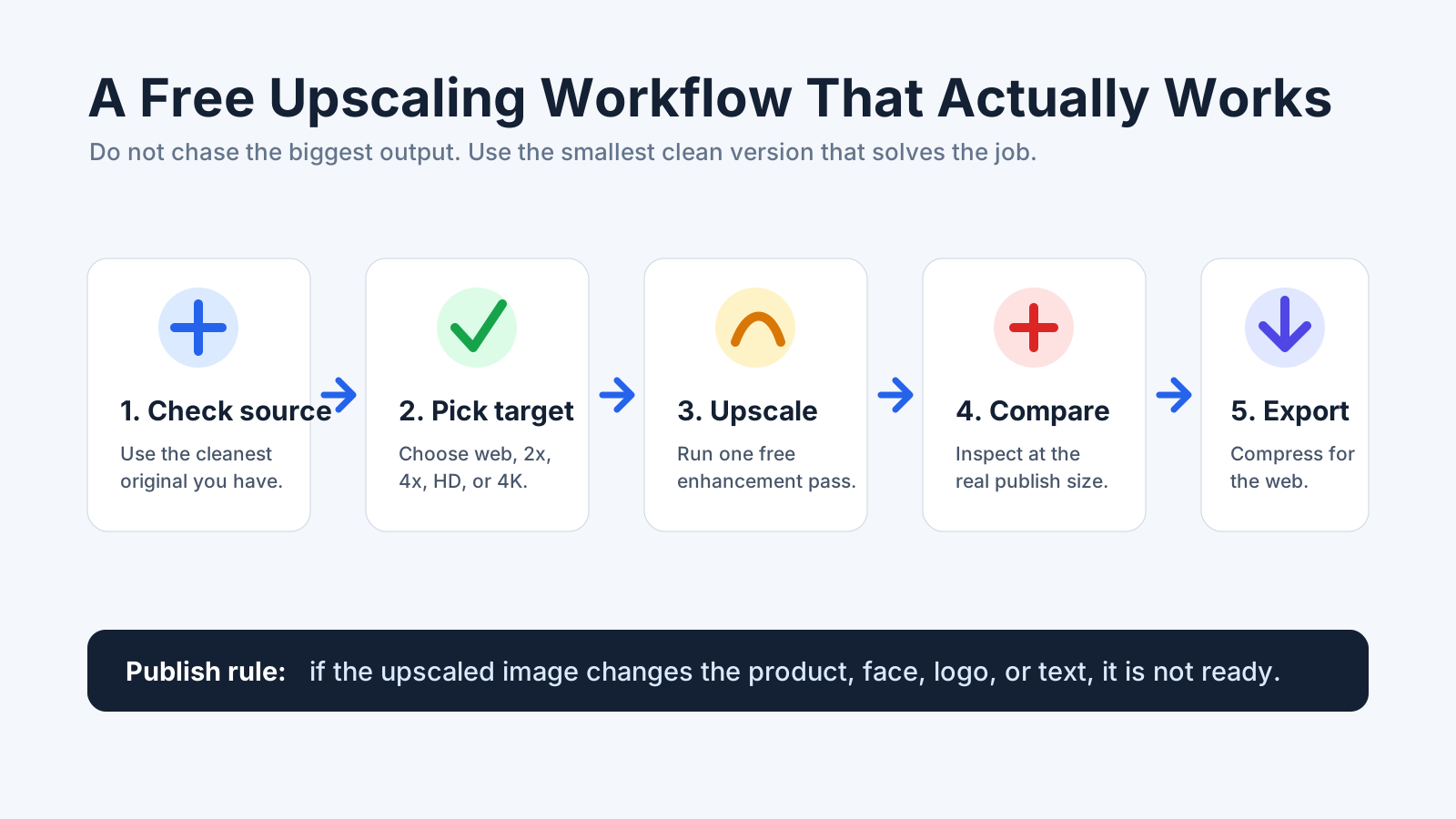
A good free upscaling workflow starts before upload and ends with a real-size quality check.
Use this workflow whether you choose UpscaleIMG, Upscayl, Canva, Adobe Express, or another free image upscaler.
1. Start with the cleanest source
Do not upscale a screenshot if you have the original image. Do not upscale a compressed chat download if you can get the source file.
AI upscaling works best when the original still contains useful structure: edges, texture, faces, product details, and lighting. A tiny thumbnail gives the model very little to work with.
Before you upload anything, ask:
- Is this the largest version I have?
- Is there a less compressed version?
- Is this a screenshot of an image that exists elsewhere?
- Does the file include private or client-sensitive material?
The best free software cannot rescue every bad source.
2. Choose the smallest output that solves the job
Bigger is not always better.
A 4K output sounds impressive, but it can expose artifacts, slow down websites, and create a file that is larger than you need. For many blog images and web graphics, a clean 2x or 2K result is enough.
Use this simple rule:
| Final use | Practical target |
|---|---|
| Small web image | 2x upscale |
| Blog header | 2K or clean web-sized export |
| Ecommerce gallery | 2x or 4x, depending on zoom needs |
| Social post | Upscale first, then crop to platform size |
| Presentation | HD or 2K |
| Large display or print mockup | 4K only if the source is strong |
The goal is not maximum pixels. The goal is a believable image at the final size.
3. Run one enhancement pass
Start with one upscale pass.
Do not stack five free tools on top of each other unless you are deliberately experimenting. Each pass can sharpen real detail, but it can also amplify noise, create waxy textures, distort faces, and invent details.
If the first result looks unnatural, try a lower scale or a different tool. Do not keep forcing the same image through the same setting.
4. Compare at real size
Thumbnail previews are flattering.
Open the upscaled result at the size where it will actually appear. If it will be a product gallery image, inspect the product. If it will be a blog hero, view it at hero size. If it will be printed, zoom in enough to catch edge problems.
Check:
- Product labels
- Logos
- Faces
- Hands
- Hair
- Fabric
- Wood grain
- Metal edges
- UI text
- Small background objects
- Shadows and reflections
The image should look clearer, not stranger.
5. Export for the final channel
After upscaling, optimize the image for where it will be used.
For websites, compress the final file and use a modern format when appropriate. For social media, crop to the final aspect ratio after upscaling. For ecommerce, keep enough resolution for zoom but avoid massive files that slow down product pages.
An upscaler improves the image. It does not finish the publishing workflow.
AI upscaling vs normal resizing
Normal resizing increases image dimensions by stretching or interpolating existing pixels. It is predictable, but it often gets blurry when the image is enlarged too far.
AI upscaling tries to infer missing detail. It can sharpen edges, improve texture, reduce pixelation, and make small images more useful. It can also invent details that were not in the original.
That is the tradeoff.
| Method | Best for | Strength | Weakness |
|---|---|---|---|
| Normal resizing | Small size changes | Fast and predictable | Gets blurry with major enlargement |
| AI upscaling | Photos, products, AI art, web images | Adds plausible detail | Can create artifacts |
| Manual retouching | Final commercial assets | Most control | Slower and skill-dependent |
| Vector rebuild | Logos, icons, diagrams | Perfect scalability | Requires recreation |
If you are enlarging a photo, AI upscaling is usually better than normal resizing.
If you are enlarging a logo, chart, interface screenshot, or text-heavy image, be careful. The best solution may be to rebuild the file instead of upscaling it.
What images work best with free upscalers?
Free image upscalers work best on images that are small but still clear.
Good candidates:
- Product photos with visible edges
- Portraits with enough facial detail
- Blog graphics that are slightly too small
- AI art that needs a larger canvas
- Social images that need a sharper crop
- Real estate or travel photos with clear structure
- Old photos that are low-resolution but not badly damaged
Harder candidates:
- Tiny thumbnails
- Heavy motion blur
- Damaged scans
- Screenshots with tiny text
- Logos with exact typography
- Product images with small legal labels
- Faces that are already distorted
- Images compressed many times through messaging apps
The hard cases are not impossible. They just need more review, and sometimes a different workflow.
Free does not always mean unlimited
This is where users often get surprised.
Many tools are free to try, but not unlimited. A free tier may include lower export resolution, watermarks, daily limits, account requirements, slower processing, file-size caps, or a limited number of credits.
That does not make the tool bad. It just means you should match the tool to the job.
For one or two images, a free online upscaler is usually enough. For a full product catalog, a recurring workflow, or client production, check the current pricing, limits, privacy terms, and commercial-use rules before you rely on any free plan.
Privacy and commercial-use checks
Before uploading an image to any online upscaler, think about what is in the file.
Be careful with:
- Private identity documents
- Medical images
- Legal documents
- Unreleased products
- Client confidential assets
- Internal screenshots
- Children’s photos
- Images you do not have permission to process
If privacy matters more than convenience, use a local desktop tool such as Upscayl or an approved internal workflow. If the image is safe to upload and speed matters, UpscaleIMG is simpler.
Also check rights. Upscaling does not fix copyright problems. If you could not legally use the original image, you usually cannot legally use the upscaled version either.
Quality checklist before publishing an upscaled image
Use this checklist before you publish:
- Does the subject still match the original?
- Did the face, product, or object change?
- Are logos and labels accurate?
- Is any text distorted or invented?
- Do edges look sharp without crunchy halos?
- Does skin or fabric look waxy?
- Are shadows and reflections believable?
- Is the file size appropriate for the page?
- Do you have permission to use and process the image?
For ecommerce, check the product twice. A sharper image that changes the real product is worse than a soft image.
For blog and website visuals, check page speed. A huge image that slows the page down is not a better image for the web.
For social media, check the crop after upscaling. Platforms compress and crop, so the final visible frame matters more than the original export.
So, what is the best free image upscaler?
Here is the clean answer:
Upscayl is the best free desktop image upscaler software.
UpscaleIMG is the best free online image upscaler starting point for most everyday users.
Adobe Express and Canva are best when upscaling is part of a larger design workflow.
Freemium tools such as Upscale.media, Pixelcut, Icons8, and Let’s Enhance are worth testing when you want to compare outputs, but check their current free limits before depending on them.
If you are reading this because you have one image that needs to look sharper, start with UpscaleIMG. It matches the fastest path: upload, upscale, compare, download.
If you are building a private offline workflow or processing a large image set locally, install Upscayl.
That is the practical split.
FAQ
What is the best software for upscaling an image for free?
If you specifically want installed desktop software, Upscayl is the best free option for most users. If you want a free online tool without installation, UpscaleIMG is the better starting point.
Is there a free AI image upscaler?
Yes. UpscaleIMG offers free online AI image upscaling, and Upscayl is a free open-source desktop option. Other tools, including Adobe Express, Canva, Upscale.media, Pixelcut, Icons8, and Let’s Enhance, may offer free features or limited free use.
Is UpscaleIMG free?
UpscaleIMG is built as a free online AI image upscaler for quick browser-based image enhancement. Limits, export options, and policies can change, so check the live site before relying on a specific free workflow for business use.
Is Upscayl better than an online upscaler?
Upscayl is better if you want local desktop software, open-source control, and no cloud upload. An online upscaler such as UpscaleIMG is better if you want the fastest no-install workflow.
Can I upscale an image to 4K for free?
Some free or freemium tools support high-resolution upscaling, but limits vary. Use 4K only when the source image is strong and the final use actually needs that size.
What is the best free image upscaler for product photos?
UpscaleIMG is a strong starting point for product photos because it is fast and focused on browser-based AI image enhancement. Always inspect labels, colors, materials, and packaging before publishing.
What is the best free image upscaler for AI art?
UpscaleIMG works well for quick online enhancement. Upscayl is a good desktop choice if you want local control and repeated processing. For anime-style art, waifu2x-style tools may also be useful.
Can a free image upscaler fix blurry text?
Sometimes it can sharpen text edges, but it can also distort or invent letters. For important text, logos, charts, and UI labels, rebuild the text in a design tool after upscaling the image background.
Should I use AI upscaling or Photoshop?
Use AI upscaling when you need a fast resolution and clarity boost. Use Photoshop or another editor when you need masking, retouching, cleanup, exact typography, or professional finishing.
What should I avoid when upscaling images for free?
Avoid using tiny thumbnails, uploading private files to tools you have not vetted, blindly choosing the largest output, and publishing results without checking faces, labels, logos, text, and artifacts.
Sources checked
This article was prepared for the UpscaleIMG blog and checked against public product pages on August 31, 2026:
- UpscaleIMG homepage: https://upscaleimg.app/en
- UpscaleIMG blog on free AI image upscalers: https://upscaleimg.app/en/blog/best-free-ai-image-upscaler
- Upscayl official site: https://upscayl.org/
- Adobe Express free image upscaler: https://www.adobe.com/express/feature/image/resize/upscale
- Canva image upscaler: https://www.canva.com/features/ai-image-upscaler/
- Upscale.media: https://www.upscale.media/
- Pixelcut AI image upscaler: https://www.pixelcut.ai/image-upscaler
- Icons8 Smart Upscaler: https://icons8.com/upscaler
- Let’s Enhance: https://letsenhance.io/

