

A clean upscaling workflow starts with a usable source image, a clear output target, and a final inspection before download.
Small images cause practical problems. A supplier gives you a product photo that looks soft on a marketplace listing. A blog graphic that looked fine in a draft becomes blurry on a retina display. An AI art export is too small for a banner. An old photo is good enough to keep, but not sharp enough to print.
Upscaling is the process of increasing an image’s resolution so it can be used at a larger size. Basic resizing simply stretches the pixels you already have. AI upscaling tries to rebuild plausible detail, sharpen edges, and reduce the blocky look that happens when a low-resolution image is enlarged too far.
This guide explains how to upscale an image online with UpscaleIMG, what settings to think about, when to use the homepage upscaler versus the HD Image Converter, and how to decide whether 2K, 4K, or a smaller enhancement is the right choice.
Quick Answer: How Do You Upscale an Image?
To upscale an image with UpscaleIMG, open the homepage, upload or drop a JPG, PNG, or WebP image, run the AI upscaler, preview the result, and download the enhanced file. For a specific HD, 2K, or 4K target, use the HD Image Converter page and choose the target resolution before processing.
For best results, start with the clearest source file you have. AI upscaling can make a small or compressed image cleaner, but it cannot perfectly recover details that were never visible in the original. If the image is extremely blurry, heavily cropped, or full of compression artifacts, the output may still need manual editing.
Upscaling Methods Compared
| Method | Best for | Strengths | Tradeoffs |
|---|---|---|---|
| Basic resize in an editor | Small size changes, quick layout fixes | Fast, predictable, works offline | Can blur edges and amplify pixelation at larger sizes |
| AI image upscaler | Product photos, portraits, social graphics, AI art, blog images | Reconstructs detail instead of only stretching pixels | Results vary by source quality and current processing availability |
| Manual editing in Photoshop or similar tools | High-value assets that need retouching | Maximum control over sharpening, masks, cleanup, and export | Slower, requires software and editing skill |
| UpscaleIMG HD Image Converter | HD, 2K, or 4K target output | Simple target selection with browser-based upload and download | Large targets may be slower or less reliable on weak source images |
The practical takeaway is simple: use basic resizing when you only need a minor layout adjustment, use AI upscaling when the image needs visible quality improvement, and use a manual editor when the file is important enough to justify retouching.
What UpscaleIMG Is Built For
UpscaleIMG is a focused online image upscaler. The public product flow is built around a short sequence: upload an image, process it through a server-side AI workflow, preview the result, and download the enhanced output.
The homepage positions the tool for everyday visual work: ecommerce product images, blog graphics, social posts, AI artwork, and personal photos. The current upload component accepts JPG, PNG, and WebP files up to 10 MB. The page also emphasizes that visitors can try the homepage workflow without signup, while noting that results depend on image size, clarity, and current processing capacity.
There is also an HD Image Converter flow for users who want to pick an explicit output target. That page is designed around HD, 2K, and 4K targets, with the same practical idea: upload, choose the target, process, preview, and download.
Step-by-Step Workflow
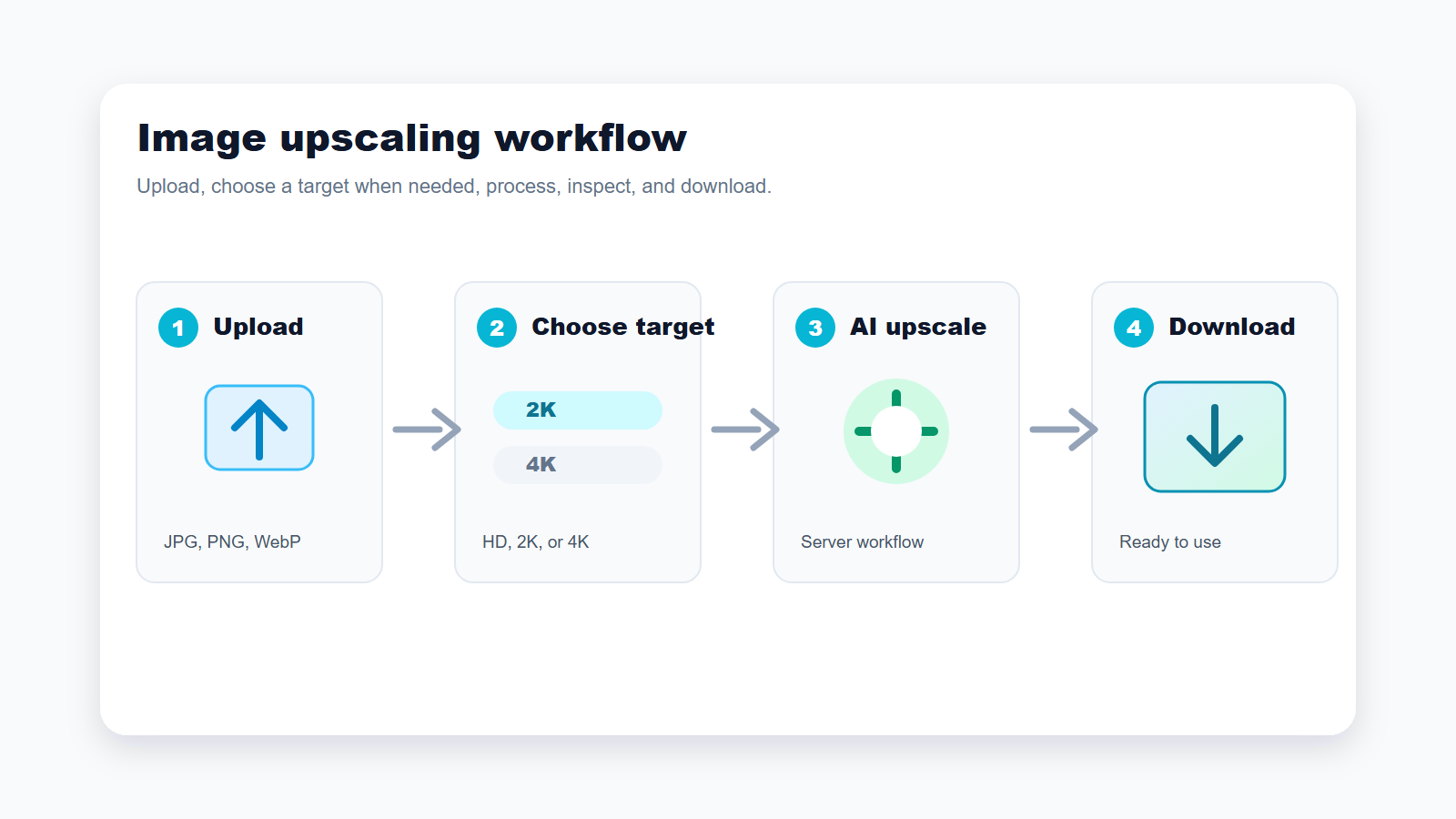
Use the shortest path when you only need a cleaner image; switch to a target-based flow when the final size matters.
1. Start With the Best Source Image You Have
Before you upload anything, choose the cleanest version of the image. A large original from a camera, design export, or product supplier usually works better than a screenshot from a compressed chat app. If you have multiple versions, avoid the one that has already been resized several times.
AI upscaling works by analyzing the visible pixels and generating additional detail that fits the surrounding context. That means the source still matters. A clear 1000-pixel product photo can often become a much cleaner web asset. A tiny 120-pixel thumbnail may get larger, but it may not become trustworthy for a product page because the model has too little real detail to work with.
2. Upload a Supported File
On the UpscaleIMG homepage, you can drop an image into the upload area or select a file from your device. The current product implementation accepts JPG, PNG, and WebP images up to 10 MB.
Use JPG for regular photos, product shots, and social images where smaller file size matters. Use PNG when the image contains graphics, interface screenshots, logos, or transparency. Use WebP when you want a modern web-friendly format with strong compression.
If your image is AVIF, HEIC, TIFF, or another format, convert it to JPG, PNG, or WebP before using the homepage flow, unless the available public interface changes. Availability may vary as product support evolves.
3. Choose the Right Output Target
If you use the homepage upscaler, the process is intentionally simple. Upload the file, run the upscaler, and review the result. If you need more control over the final size, use the HD Image Converter page.
The HD Image Converter currently presents three target choices:
- HD: useful for common web visuals and screens around 1920 pixels on the long side.
- 2K: a practical middle ground for blogs, product galleries, social graphics, and many marketing pages.
- 4K: useful for large displays, print mockups, hero images, and cases where the source image is already reasonably clean.
Do not choose 4K just because it sounds better. A larger output is not automatically a better output. If the source is soft or compressed, an aggressive upscale can make artifacts more visible. For many web projects, 2K is enough.
4. Run the Upscale
When you start processing, UpscaleIMG sends the image through a secure server route rather than exposing internal AI processing credentials in client-side code. For users, the important point is that the work happens through the web app: upload, wait for the result, then download.
Processing time can vary. Larger images, 4K targets, and current service capacity can affect speed or availability. If a file fails, try a clearer source, a smaller target, or a smaller file.
5. Compare the Result Before You Use It
Do not download and publish blindly. Inspect the output at the size where it will actually be used.
Zoom in on the parts that matter: product edges, faces, text, logos, fabric texture, hair, foliage, and any fine lines. Check whether the result looks sharper without becoming artificial. If the image contains readable text, make sure the letters are not distorted. If the subject is a face, check that the eyes, mouth, and skin texture still look natural.
6. Download and Export for the Final Channel
After the result looks acceptable, download it and use the format that matches your destination. For a website, WebP is often a good final format because it can keep high visual quality with smaller file size. For a transparent graphic or a lossless workflow, PNG may be better. For email, marketplaces, and general sharing, JPG is usually safe.
If you plan to compress the image again after downloading, keep a high-quality copy first. Repeated compression is one of the easiest ways to undo the benefit of upscaling.
Feature-by-Feature Notes
Upload Simplicity
UpscaleIMG is designed for a short upload workflow. This matters because most users are not trying to learn professional image editing. They have a specific asset problem and want a usable result quickly.
The drag-and-drop flow is best for one-off images: a product photo, a blog header, a social graphic, a profile image, or an AI-generated picture that exported too small. If you need batch processing for hundreds of files, check current product availability rather than assuming it is supported on every page.
Server-Side Processing
The current implementation routes processing through the server. From a product perspective, that is useful because the browser does not need direct access to internal AI credentials or storage configuration. It also lets the app manage image upload, transformation, and output delivery in one flow.
For users, the main caution is privacy and access. Do not upload images you are not allowed to process in an online tool. If your image contains sensitive personal, legal, medical, or confidential business information, confirm the latest privacy policy and your own compliance requirements before uploading.
Supported Formats and Limits
As of the latest public information available in the current product source, the homepage upload tool supports JPG, PNG, and WebP files up to 10 MB. The HD Image Converter page uses the same practical file format language.
Those limits can change. If you are writing internal documentation for a team, avoid hardcoding file limits unless you are prepared to update them when the product changes.
Output Quality
AI upscaling is strongest when the original image contains enough structure for the model to infer detail. It can help with small photos, soft product shots, compressed web images, and AI art exports. It is weaker when the source is badly blurred, severely underexposed, covered in motion blur, or already damaged by heavy compression.
For ecommerce and brand work, always compare the output against the original. Sharper is not the only goal. The final image should still represent the product accurately.
Use Case Recommendations
Ecommerce Product Photos
Use AI upscaling when a supplier image is too small for a listing, collection page, or ad creative. Start with 2K for most web storefronts. Use 4K only when the source is clean and you need large zoom views or print-like mockups.
Check product edges, labels, fabric, texture, and color. If AI invents a product detail that is not actually present, do not use that output as a commercial product image.
Blog Images and Website Graphics
For blog headers, tutorials, and landing page sections, 2K is usually a sensible target. It gives you enough resolution for responsive layouts without creating unnecessarily heavy assets.
After upscaling, compress the final image for web delivery. A visually sharp image that loads slowly is still a bad user experience.
Social Media Posts
Use upscaling when a graphic looks soft after cropping or when a platform preview needs a cleaner image. Avoid overprocessing faces or text. Social platforms already compress uploads, so keep a high-quality source and export in the platform’s recommended dimensions where possible.
AI Art and Generated Images
AI image generators often produce beautiful images at sizes that are not ideal for banners, posters, or hero sections. UpscaleIMG can help make those outputs more practical. Check fine details, hands, faces, and repeated patterns, because those areas can become more noticeable after upscaling.
Old Photos and Personal Images
AI upscaling can make an old photo more pleasant to view, but it is not the same as restoration. If the image has scratches, stains, missing areas, or severe blur, you may still need a restoration tool or manual retouching.
Decision Guide: Which Setting Should You Use?
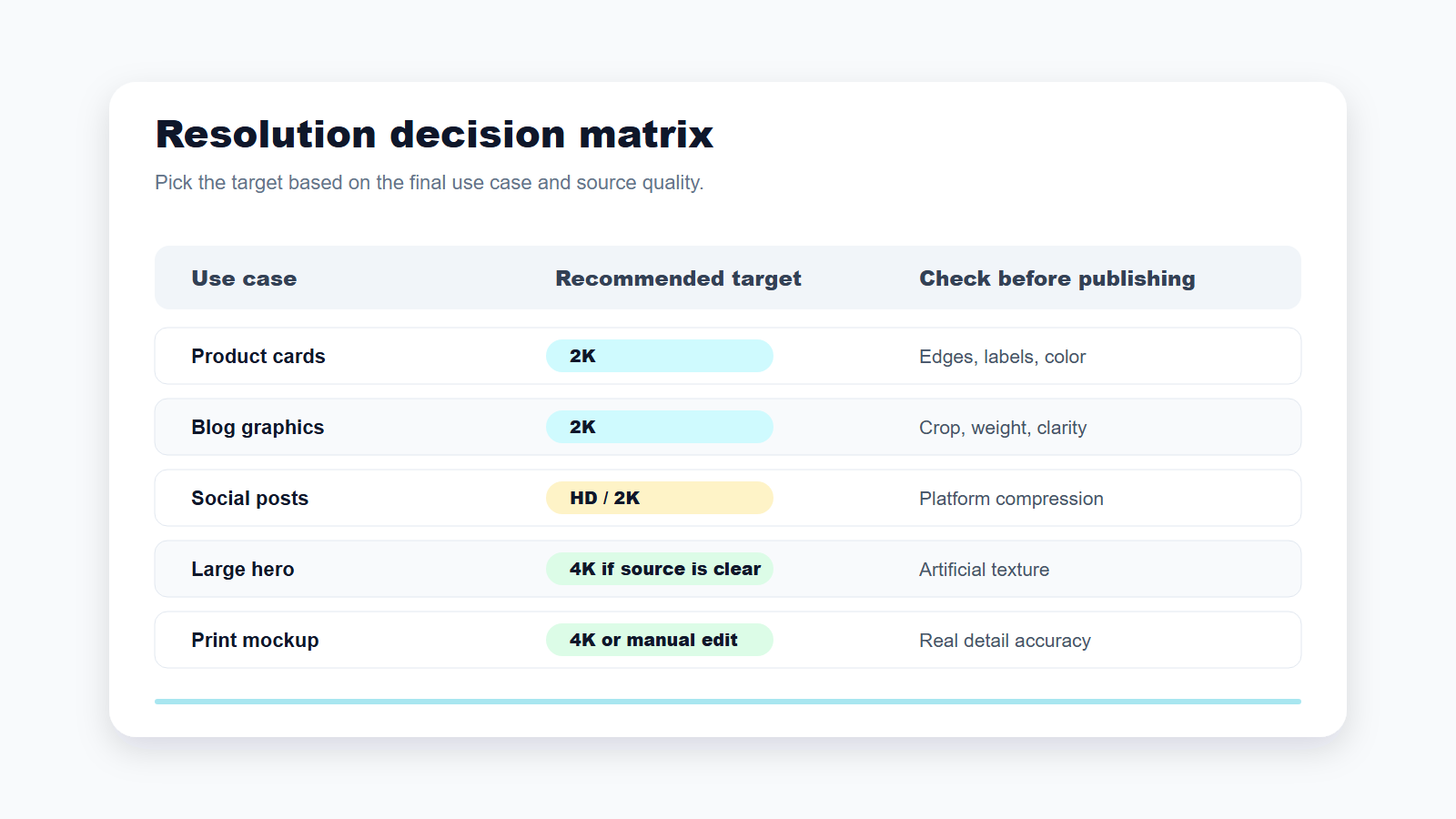
Choose the target based on where the image will be used, not on the biggest number available.
Use this simple decision rule:
If the image is for a blog, product card, social post, or regular website section, start with 2K or the homepage default flow. If the image is for a large hero, print mockup, presentation background, or display screen, try 4K only if the source image is already clear. If the image is a small icon, logo, or UI screenshot, consider PNG and inspect text carefully before publishing.
When the output looks too artificial, step down the target or improve the source. A smaller clean image is better than a larger image that looks fake.
Pricing and Access Caveats
As of the latest public information available from the current UpscaleIMG project content, the homepage workflow is described as no-signup for trying the image upscaler. I could not confirm a current public consumer pricing page for the upscaleimg.net image upscaling product from this environment. The pricing content present in the project appears to reference a generic SaaS boilerplate rather than image-upscaling plans, so it should not be used as a source for UpscaleIMG pricing claims.
If you need higher limits, batch processing, API access, or commercial usage terms, check the live product and legal pages before making a purchasing or compliance decision. Availability may vary.
Common Mistakes to Avoid
Do not upscale a tiny thumbnail and expect a studio-quality product image. Do not use 4K by default. Do not publish an AI-upscaled product photo without checking whether details changed. Do not upload confidential images unless the privacy terms and your internal rules allow it.
The best workflow is boring in a good way: use the cleanest source, choose a realistic target, inspect the result, and export for the final channel.
FAQ
What does it mean to upscale an image?
Upscaling an image means increasing its pixel dimensions so it can be displayed or printed at a larger size. AI upscaling goes further than basic resizing by generating plausible detail and improving sharpness.
Is AI upscaling the same as sharpening?
No. Sharpening increases edge contrast in the existing image. AI upscaling increases resolution and tries to reconstruct missing detail. A good final workflow may include both, but they solve different problems.
Can I upscale an image without losing quality?
You can often get a cleaner, larger result, but “without losing quality” depends on the source. Clear images upscale better than blurry, tiny, or heavily compressed images.
What file types does UpscaleIMG support?
As of the latest public information available in the current product source, the homepage upload tool supports JPG, PNG, and WebP images up to 10 MB.
Should I choose 2K or 4K?
Choose 2K for most web, ecommerce, and social workflows. Choose 4K when the final use needs a large image and the source is already clear enough to support a bigger upscale.
Is UpscaleIMG free?
The homepage workflow is described as no-signup for trying the tool. Current pricing for the image upscaling product could not be confirmed from this environment, so verify live pricing and limits before relying on them.
Will AI upscaling fix blurry text?
Sometimes it can make text edges clearer, but it can also distort letters if the source is too blurry. Always inspect text manually before publishing.
Can I use upscaled images for ecommerce?
Yes, if you have the rights to the image and the output still represents the product accurately. Check labels, colors, textures, and edges before uploading to a marketplace or store.
Sources Checked
- UpscaleIMG homepage:
https://upscaleimg.net/ - UpscaleIMG HD Image Converter:
https://upscaleimg.net/hd-image-converter - Current project source for homepage copy, upload limits, supported formats, and server-side processing behavior.
- Current project source for the HD, 2K, and 4K converter flow.
- Public live-page access from this environment timed out, so this article avoids unverified pricing, release-date, model-parameter, or paid-plan claims.

